Guide
Using Kumo Tabs
Install the extension, shape the new tab to your taste, and add the servers you want to watch.
Install
| Browser | Where |
|---|---|
| Chrome, Edge, Brave, Opera | Chrome Web Store |
| Firefox 128 and later | Firefox Add-ons |
Open a new tab once it is installed. Chrome may ask whether you meant to change the new tab page: answer Keep it. Firefox may ask the same; keep the change.
The page shows a greeting, a clock, the weather and an empty server board over the Sakura pagoda. Everything is set from the Kumo logo in the bottom-left corner, which opens the settings panel. Changes apply at once and are saved as you type.
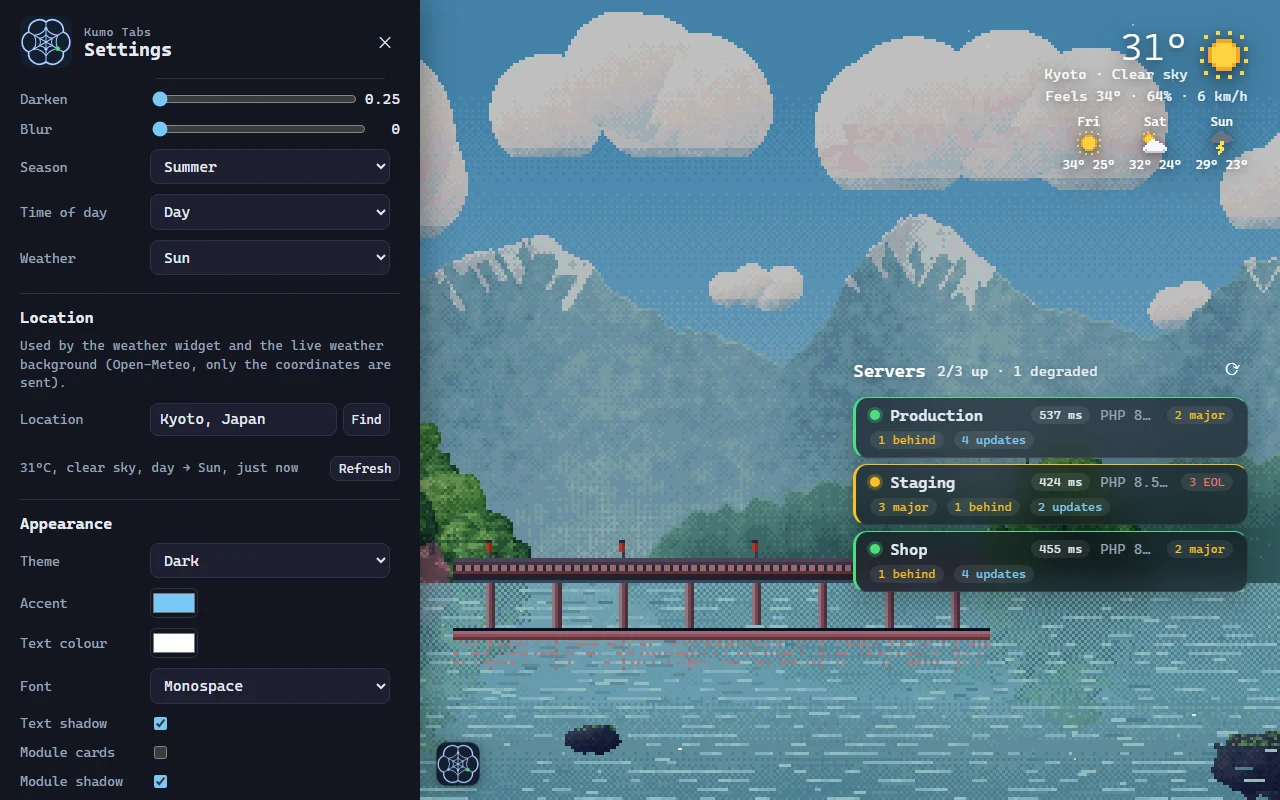
Background
Settings → Background → Type picks what fills the page:
| Type | What it shows |
|---|---|
| Sakura pagoda (pixel art) | The default: a five-tier pagoda on a cliff, a red bridge with lanterns, a lake and snowy peaks |
| Japanese landscape (pixel art) | Mount Fuji, a pagoda, stone lanterns and a torii in a lake, painted live in your browser |
| Solid colour | One colour |
| Gradient | Two colours (From, To) and an angle |
| Random photo (Picsum) | A new photo every new tab, every hour or every day |
| Image URL | Any picture on the web |
| Uploaded images (slideshow) | Your own pictures, crossfading from one to another |
Darken and Blur apply to every type, to keep the text readable on a busy picture.
Seasons and time of day
Both pixel-art scenes exist in four seasons, by day and by night.
- Season: Follow the calendar (March to May is spring, June to August summer, September to November autumn, December to February winter), or force one. Spring brings cherry blossoms and petals, summer lush greens, autumn red maples and falling leaves, winter snow on the roofs and the peaks.
- Time of day: Automatic follows the real sunrise and sunset of your place when the live weather has a reading, otherwise the clock (day from 7:00 to 19:00). Day and Night force one. An open tab turns at dusk and dawn by itself.
The scenes move a little: ripples drift on the lake, stars twinkle, lanterns flicker, petals, leaves or snow flecks fall, and now and then birds cross the sky by day or a shooting star by night. All motion stops when your system asks for reduced motion.
Weather
Background → Weather adds an animated layer over the picture:
| Weather | Effect |
|---|---|
| Live (real weather) | The default: follows the actual weather of your place (below) |
| Heavy rain, Light rain | Drops in two depths, with splash rings on the lake |
| Snow | Drifting flakes, small and far or big and close |
| Sakura petals | Pink petals riding the wind, turning over as they fall |
| Sun | Warm specks floating up and glints on the water; the scene switches to day |
| None | No animation |
Your own pictures
With Uploaded images (slideshow), press Add pictures and pick as many files as you like. Each picture is scaled down to 2560 px wide before it is stored. Every new tab opens on a random picture, and Next picture (every 15 s to every hour, or never) fades to another one. The × on a thumbnail removes it.
Location and live weather
Settings → Location: type a city, press Find (or Enter) and pick it in the list. Only its coordinates are sent, to Open-Meteo, a free weather service that needs no account.
The reading drives the live weather (clear by day gives sun, drizzle light rain, showers and storms
heavy rain, snow gives snow) and the real sunrise and sunset. It is kept for 30 minutes, so most new
tabs make no request at all; Refresh fetches it at once. The settings show
the last reading, for example 15°C, partly cloudy, day → None, 2m ago.
Widgets
Settings → Widgets has one block per module. Each can be hidden and placed in any of nine positions (top, middle or bottom; left, center or right).
| Widget | Options |
|---|---|
| Greeting | Your name, to be greeted by it |
| Clock | Seconds, Date |
| Search | Engine |
| Weather | Units (°C and km/h, or °F and mph), Details (feels-like, humidity, wind), Forecast (none, 3 or 5 days) |
| Server vitals | Compact list, Check for updates, Dev dependencies, Check every (s), Timeout (s) |
Appearance
| Setting | Effect |
|---|---|
| Theme | Dark, Light, or Follow the system |
| Accent, Text colour | Colours of links, buttons and the free text |
| Font | Sans-serif, Serif, Monospace, Rounded… |
| Text shadow | A soft shadow under the greeting and the clock |
| Module cards | Puts each module on a frosted glass card |
| Module shadow | A drop shadow under the modules and the server cards |
| Size | Scales the whole page |
Servers
The server board is the heart of Kumo Tabs: one card per server, refreshed every minute while the tab is visible. Each server answers one small HTTP request with a JSON report; Server setup describes it, and Examples has ready-made endpoints.
Add a server
- Open the settings → Add a server.
- Give it a Name and paste the Endpoint URL. A bare domain gets
/vitalsappended. - Press Generate for the API token, then copy the Token hash (SHA-256) shown under it into the server’s configuration. The server only ever stores the hash.
- Press Save & check. The browser asks for access to that one host: allow it, since the extension cannot call the server without it.
The ↑ and ↓ buttons reorder the cards, Remove deletes one.
Reading a card
| State | When |
|---|---|
| Up | The server answered 200 with "ok": true, and nothing below is wrong |
| Degraded | Database unreachable, a failing, late or stuck cron, disk or memory under 10% free, or a 5-minute load above the CPU count |
| Down | Network error, timeout, an answer that is not JSON, or any status other than 200 and 401 |
| Bad token | The server answered 401: the token and the stored hash do not match |
| No access | The browser has no permission for that host yet: press Grant access on the card |
The card also shows the response time, the app build and branch, the runtime, the database and its latency, uptime, load, memory and disk bars, cron counts and versions, depending on what the server reports.
The ⟳ Check now button asks every server for a fresh report (?fresh=1), so they rebuild what
they cache.
Update checks
Every dependency a server reports is compared with its official releases, and the Versions row sums them up:
| Badge | Meaning |
|---|---|
EOL → x |
Your branch is past its end of life; x is the newest supported release |
LTS x / x major |
A newer LTS (or supported) branch is out |
x |
A newer patch exists in your branch |
below x |
The installed package is older than the package.json constraint |
✓ |
Up to date |
Release data comes from endoflife.date (PHP, Node.js, Bun, MySQL, MariaDB, Apache, nginx, OpenSSL), npm and Packagist. It is cached for 12 hours and shared by all servers; Look up now refreshes it. Check for updates and Dev dependencies can be turned off.
Linux distributions backport security fixes under old version numbers (Ubuntu’s OpenSSL 3.0, Apache 2.4.58…): a badge on a system library reflects upstream, not your distribution’s support.
Backup and privacy
Settings, tokens and pictures live in the extension’s local storage, in your browser profile only. They are never synced, and they are deleted if you uninstall the extension.
- Settings → Backup → Export saves everything as
kumo-tabs-<date>.json. - Import… replaces the configuration with such a file, after a confirmation.
That is how you move a setup between Chrome and Firefox, or survive a reinstall. The file holds your API tokens: keep it private.
Kumo Tabs has no account and no analytics. It talks to your own servers (only the hosts you allow), to Open-Meteo for the weather, and to endoflife.date, npm and Packagist for release data.